Vidlore runs in Chrome on the Udemy courses you’re already enrolled in. It reads transcripts through your own Udemy session, so it can’t open a course you haven’t joined.
Pin the icon
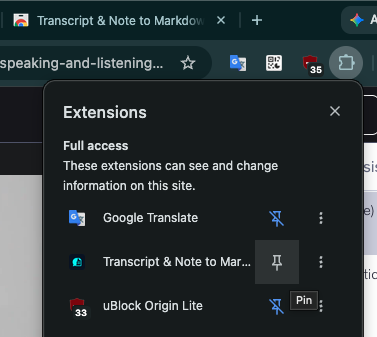
Click the puzzle piece at the top right of Chrome, then the pin next to Vidlore. The icon stays in the toolbar so you can open the popup with one click.
Open a lecture
Open any lecture of a course you’re enrolled in. The address looks like
udemy.com/course/<course-name>/learn/lecture/.... Udemy Business works too.
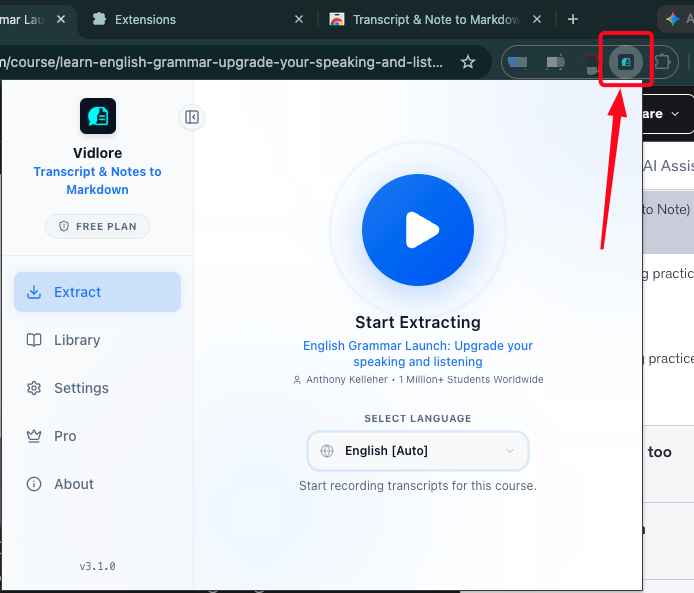
Then click the Vidlore icon. The popup opens on the Extract tab.
When the popup says you’re in the wrong place
- Not on Udemy: the current tab isn’t Udemy. Click Open Udemy.
- Open the course player: you’re on the course’s sales page. Click Go to course. If you aren’t enrolled yet, enroll on that page first.
- Pick one of your courses: you’re elsewhere on Udemy. Click My learning.
- Reload the page to connect Vidlore: the tab was open before Vidlore was installed or updated. Click Reload page.
Find your way around the popup
The sidebar has five tabs:
- Extract: grab the transcripts of the course in the current tab.
- Library: your extracted courses, the Study Hub, and search.
- Settings: language, theme, export content, and extraction speed.
- Pro: your plan, sign-in, and AI quota.
- About: version, docs, release notes, and support.
Next, extract your first course.